

Quick start
bitwerk is set up in a few minutes: one command on the server, one command on the Raspberry Pi, and the Pi joins the server by itself. You do not have to create any secrets, and you do not have to edit a configuration file.
In 5 minutes
Section titled “In 5 minutes”About 5 minutes with the prebuilt images (if none exists for your platform, the installer builds from source, which takes 10 to 60 minutes).
On the server (Linux; the installer checks the machine first and offers to install Docker):
curl -fsSL https://github.com/Arteiii/bitwerk/releases/latest/download/install.sh | sudo shThe installer asks for your music folder, starts bitwerk and finally shows the address and setup code:
bitwerk is running.
  Open http://192.168.1.10 and enter the setup code ABCD-EFGH.  Afterwards you set your admin password.
On the Raspberry Pi (Raspberry Pi OS Lite, 64-bit):
curl -fsSL https://github.com/Arteiii/bitwerk/releases/latest/download/get.sh | sudo shOr flash the ready-made image instead. The Pi installer detects the DAC and the touch display, shows what it found and asks once: Use these settings? Enter. After that the Pi joins the server by itself and appears in the web UI under Settings → Clients (details): pick a room, tap an album. No code, no click and no SSH needed.
The following sections explain the steps in detail.
Prerequisites
Section titled “Prerequisites”- Server: a 64-bit Linux machine (amd64 or arm64: NAS, mini PC, Raspberry Pi 4/5) with about 1 GB RAM and
2 GB free disk, and Docker Engine with Compose v2. If Docker is
missing, the installer offers the official script (
curl -fsSL https://get.docker.com | sh); with--yesit installs it without asking,--no-install-dockerturns that off. A build from source needs 2 GB RAM. How many players it feeds depends on the disk and the network: Capacity (for example about 60 CD-quality rooms from a USB 2.0 stick, up to 100 from an SSD on 1 Gbit/s). - Network: server and players on the same LAN/VLAN, because the players find the server by UDP broadcast.
- Player: Raspberry Pi 4 or 5 with a DAC (I²S HAT or USB). A Pi 3B+ works too; the ready-made image also runs
on a Pi 3B,
get.shneeds a 3B+ or newer. See Set up a Raspberry Pi; which DACs are known and how they are set up: DAC list.
1. Install the server
Section titled “1. Install the server”Run the server command from In 5 minutes. The installer
- checks the machine before it downloads anything: Linux on amd64 or arm64, Docker Engine with Compose v2 (not Docker Desktop), RAM and free disk, and that the ports 8080, 8082, 9000/udp, 53535/udp and 5432 on loopback are free. Each problem is one line that says what to do, for example which process holds a port,
- asks for the music folder (default
/srv/bitwerk/music) and whether it is read-only or on a NAS. A normal folder goes to the service user (UID 10001, the containers do not run as root) and the grouphifi(GID 10001), which you are added to, so you can copy music in withoutsudoafter logging in again. A read-only/NAS library keeps its owner and is mounted read-only (no uploads, see Operations), - puts the server stack under
/opt/bitwerk:docker-compose.yml, a small.envwith the music folder and the scripts for backup, restore and updates, - downloads the prebuilt images from GitHub (GHCR). If there is none for your platform, it says why and builds them from source; that takes 10 to 60 minutes depending on the machine,
- starts everything and waits until the services are healthy,
- sets up a database backup every 72 hours (see Operations),
- shows the address of the web UI and the setup code.
You can also set everything without prompts:
curl -fsSL https://github.com/Arteiii/bitwerk/releases/latest/download/install.sh | sudo sh -s -- --yes --music-dir /mnt/hdd/music| Option | Meaning |
|---|---|
--music-dir DIR | Music folder (default /srv/bitwerk/music) |
--read-only-music | The music folder is read-only or a NAS share: no change of owner, mounted read-only, no uploads |
--dir DIR | Installation folder (default /opt/bitwerk) |
--version X.Y.Z | A specific version instead of the latest; it stays pinned, --version latest follows the latest release again |
--https | Enable the HTTPS proxy (Caddy) for the web UI, see Operations |
--hostname NAMES | Names/IPs for the HTTPS certificate (default: <host>.local and the LAN IP) |
--no-backup-timer | No scheduled database backups (--backup-timer turns them on again) |
--no-drives | Leave the host’s drive mounting alone; otherwise every install and update sets up USB drives as external libraries (read-only below /media, readable for bitwerk, External drives); --drives undoes it |
--no-install-docker | Never install Docker; stop if it is missing |
--update | Update (also: sudo /opt/bitwerk/deploy/update.sh) |
--uninstall [--purge] | Remove; with --purge also the database and the installation folder |
--yes | No prompts; installs Docker if it is missing |
You can run the installer as often as you like: an existing installation is updated,
the .env is kept.
Afterwards four containers are running:
| Container | Port | Purpose |
|---|---|---|
| postgres | 5432 (local only) | Database |
| control-server | 8080 and 80 (web UI), 8443 and 443 (the same over HTTPS, own certificate authority), 53535/udp (discovery), 53536/udp (room clock), 9000/udp (OSC) | Control |
| media-service | 8082 | Library and streams |
| ai-service | 8084 (local only) | Optional AI texts about songs and artists, off until an admin switches AI on |
2. Set up in the browser
Section titled “2. Set up in the browser”Open the address shown, for example http://192.168.1.10, and enter the setup code. The installer shows the address
without a port when the control-server holds port 80; otherwise it shows port 8080 (http://192.168.1.10:8080),
which always works.
Then set your admin password. The code is only valid for this initial setup.
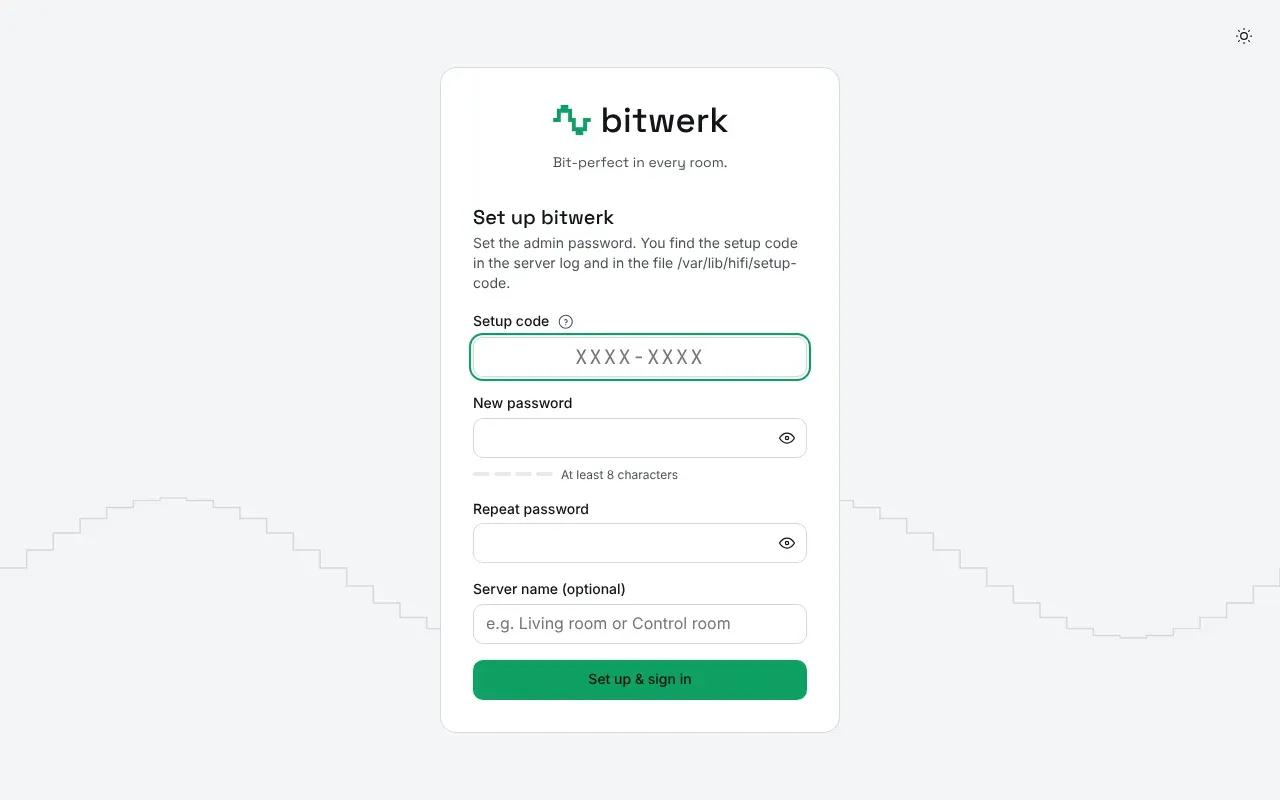
You can find the code again later like this:
cd /opt/bitwerk && sudo docker compose exec control-server cat /var/lib/hifi/setup-codeThe secret for the signed stream links is generated by the server on first start and stored in the database.
3. Add music
Section titled “3. Add music”Copy albums into the uploads/ folder inside the music folder, for example with rsync. The installer added you
to the group hifi; log in again once so that it applies. --chmod gives the group write access, so bitwerk can
move the files into the library:
rsync -rtpv --chmod=D2775,F664 --progress "Album" server:/srv/bitwerk/music/uploads/The media-service waits until the files are complete, reads the tags and moves them to
library/Artist/Album/. You can see the progress under Settings → Uploads. You put an existing
collection directly into library/. Details, including a Samba share for Windows and macOS:
Managing music.
4. Install the Raspberry Pi
Section titled “4. Install the Raspberry Pi”Ready-made image (quickest): download the image for your Pi from the
latest release, bitwerk-player-pi4-arm64.img.xz for a
Pi 4, 400, CM4 or Pi 5, bitwerk-player-pi3-arm64.img.xz for a Pi 3B/3B+/3A+, and flash it with Raspberry Pi
Imager (Use custom; set hostname = room name and Wi-Fi in the OS customisation). From power-on the screen shows
only the bitwerk logo with a loading animation until the kiosk is up. On first boot the Pi detects the DAC and
the touch display and starts everything by itself; a DAC HAT without EEPROM or a pairing code goes into
bitwerk.txt on the boot partition. Details: Set up a Raspberry Pi.
Installer on an existing system: on a freshly installed Raspberry Pi OS Lite (64-bit) on a Pi 3B+ or newer, run the Raspberry Pi command from In 5 minutes via SSH or at the console. The installer
- detects the Pi model and installs the
hifi-clientpackage – via the bitwerk APT repository (then updates come withapt), or, if it is not reachable, with a warning directly from the release, - detects the DAC (the first external one in
aplay -l) with its actual rates, bit depth, DSD and volume control (aplay --dump-hw-params), the touch display and the room name (the hostname). If no DAC is visible, it offers the known HATs from HiFiBerry, Allo and Raspberry Pi and writes the overlay, - shows what it found and asks once, Use these settings?;
nlets you change room, output and display,--advancedalso rates, bit depth, DSD and volume, - writes
/etc/hifi/player.env, applies the recommended system settings (CPU governor, Wi-Fi power saving and USB autosuspend off), starts the services and says how the Pi gets updates.
Later you can change the setup at any time with sudo hifi-setup. To have the Pi install new player versions
by itself, never during playback: sudo hifi-setup --upgrades auto. All options, including for an
installation without prompts: Set up a Raspberry Pi.
5. Pair
Section titled “5. Pair”By default there is nothing to do: a Pi that talks to the server directly from your local network is paired automatically within seconds. It shows up in Settings → Clients with the room name it reports and the badge “Joined automatically”; rename it there if you like. Updates of the server or the Pi keep the pairing.
The server then trusts every device on your network that asks to be a player, and a player can use a linked Spotify account. Where guests or unknown devices share the network, turn on “Extended security: new players need approval” in Settings → Clients. New Pis then wait to be paired: the Pi is listed under New devices with its host name, model, MAC address and version (in the new web UI, which also shows a short “New device found” notice).
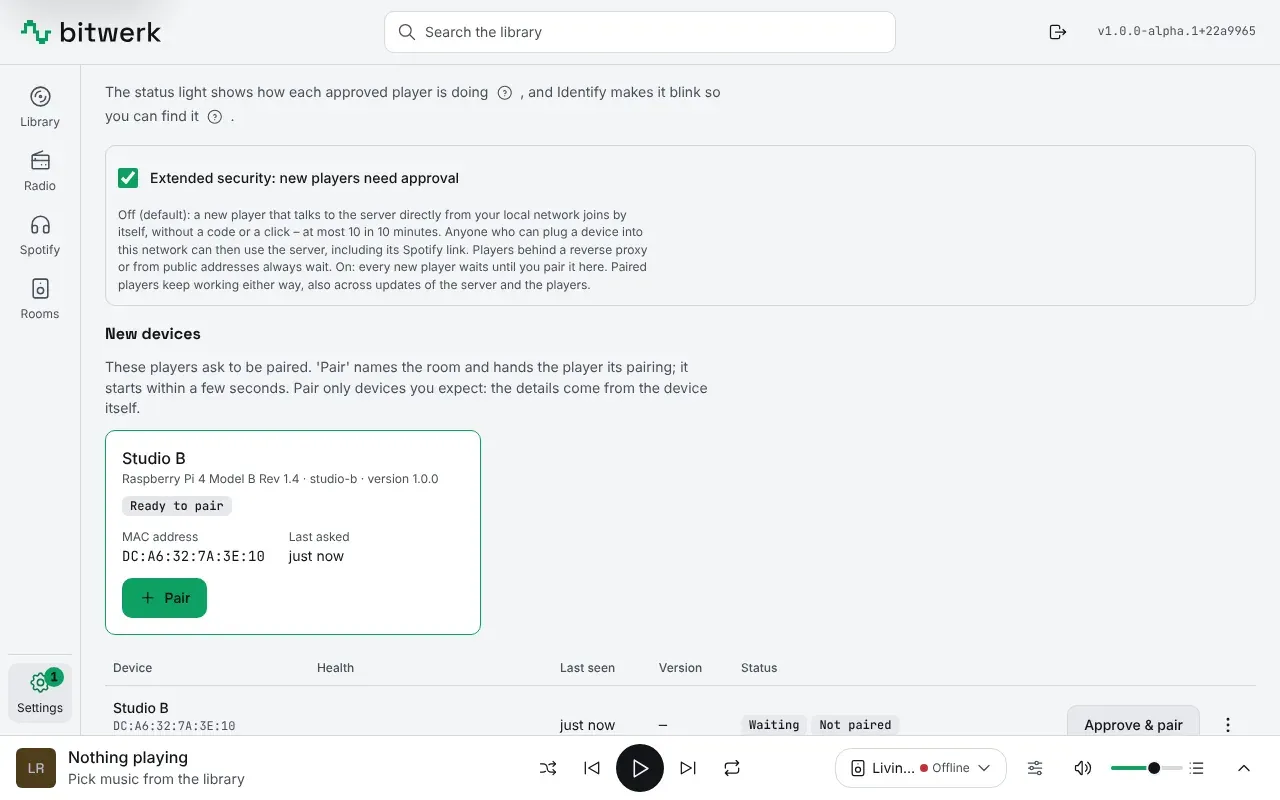
- Click “Pair” next to the Pi.
- Enter the room name (prefilled with what the Pi reports) and confirm.
- After a few seconds the Pi has picked up its token and the room is “online” in the player selection.
Pair only devices you expect: the server trusts what devices on your network say about themselves. If you prefer to prove that you have the Pi in front of you, or the Pi does not show up under New devices, pair it with a code instead (this works in both modes):
- Click “Approve & pair” next to the Pi. The dialog shows a code like
7K3M-Q9TD, valid for 10 minutes. - Enter the code:
- With a touch display: directly at the display. Until it is paired, it shows a setup screen with the device name, status and an on-screen keyboard (on the native kiosk behind “Enter pairing code”).
- Without a display: run
sudo hifi-setup --pairon the Pi; it asks for the code.
6. Play
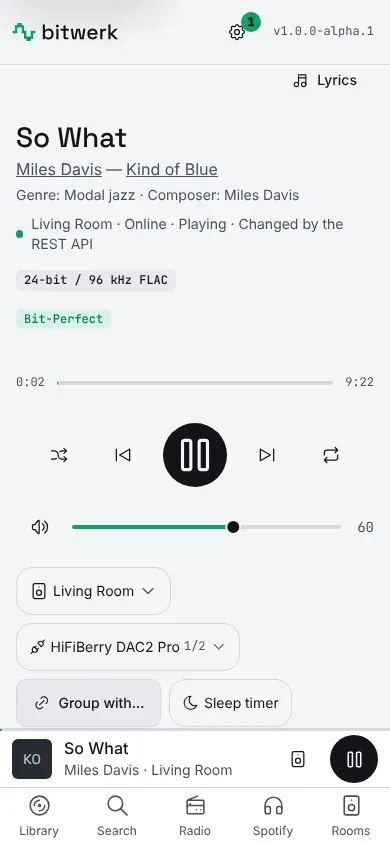
Section titled “6. Play”Pick a room at the top of the web UI, search for a track and tap it. The DAC display then shows, for example, “96 kHz / 24-bit” with the green badge “Bit-Perfect”.
Without the installer
Section titled “Without the installer”From a checkout of the repository, Docker Compose builds the images itself. A .env is not
needed here either:
git clone https://github.com/Arteiii/bitwerk.git bitwerk && cd bitwerksudo mkdir -p /srv/bitwerk/music && sudo chown -R 10001:10001 /srv/bitwerk/musicdocker compose up -d --buildThe setup code is then shown by docker compose logs control-server. You set a different music folder
with MUSIC_HOST_DIR in a .env; all settings are listed under
Configuration. Alternatively sudo deploy/install.sh from the checkout installs
as described above.
Without Docker
Section titled “Without Docker”On a box that does nothing else (a mini PC, a Raspberry Pi 5) the server also runs from Debian packages with systemd and the distribution’s Postgres (Debian 12, Ubuntu 24.04, Raspberry Pi OS):
curl -fsSL https://github.com/Arteiii/bitwerk/releases/latest/download/install.sh | sudo sh -s -- --nativeThe same command moves an existing Docker install over. Details: Native install.
Try it without a Raspberry Pi
Section titled “Try it without a Raspberry Pi”Any machine with Rust can simulate a player. The null device discards the audio in real time
but runs through the complete engine. Without --pairing-code, --mode pair asks for the code:
cargo run -p client -- --device null --server http://<server>:8080 --mode pair --token-file ./player.tokencargo run -p client -- --device null --server http://<server>:8080 --player-id <id> --token-file ./player.tokenThe player ID is in the web UI under Settings → Clients. Without --server and --player-id
the player finds the server by discovery.
Next steps
Section titled “Next steps”- Control & integrations: touch display, Stream Deck, OSC, Home Assistant
- Configuration: optional settings and ports
- Operations: backup, updates, logs, HTTPS
- Troubleshooting