

Operations
This page describes the day-to-day operation of the server: backing up data, updating, reading logs and optionally serving the web UI over HTTPS. It covers the Docker install; the packages without Docker have their own page: Native install.
What lives where
Section titled “What lives where”| Data | Location | Back up? |
|---|---|---|
Music (uploads/, library/) | Music folder on the host (MUSIC_HOST_DIR, default /srv/bitwerk/music) | yes, separately |
Database: library index, queues, playlists, clients, tokens, triggers, PEQ, admin password, MEDIA_URL_SECRET | Volume pgdata | yes, automatically every 72 h (Backup) |
| Optional settings | .env (created by the installer with the music folder) | yes, separately, if it contains secrets |
| Setup code of the initial setup | Volume control-data | no |
| Cover cache | Volume covers | no, regenerated |
Certificate authority of the built-in HTTPS (ca.der, ca-key.der) | Volume control-data (TLS_DIR, /var/lib/hifi/tls) | recommended: if it is lost, every device has to trust the new one |
| Certificates and local CA (HTTPS profile only) | Volume caddy_data | recommended |
The installer puts the following in /opt/bitwerk:
| File | Contents |
|---|---|
docker-compose.yml | Server stack with the prebuilt images (docker-compose.release.yml from the repository) |
.env | Music folder, image source (BITWERK_IMAGES, BITWERK_VERSION), HTTPS if enabled, the installer’s choices (MUSIC_READ_ONLY, BACKUP_TIMER, BACKUP_KEEP) |
deploy/ | install.sh, update.sh, backup.sh, restore.sh, drives.sh, Caddyfile |
backups/ | Database backups (scheduled, requested in the web UI and the ones before every update) |
data/backup/ | Shared with the control-server: backup interval, “Back up now” requests, backup status |
VERSION | Installed version |
Your own customizations to the services belong in a docker-compose.override.yml next to it: Compose
loads it automatically, and updates do not overwrite it.
Music folder permissions
Section titled “Music folder permissions”The server containers do not run as root but as the user hifi with UID/GID 10001. The
media-service reads the library and moves uploads from uploads/ to library/; it therefore
needs read and write permissions on the whole music folder.
If the media-service cannot read uploads or write a folder, Settings → Library shows a warning with the affected files and the command that fixes it, with a copy button.
The installer sets the permissions itself: the folder belongs to UID 10001 and the group hifi (GID 10001,
created if missing), the group may write, and the setgid bit makes new folders inherit the group. It adds the user
who ran sudo to hifi, so after logging in again you copy music into uploads/ without sudo. By hand, the
simplest way is for the folder to belong directly to this UID:
sudo chown -R 10001:10001 /srv/bitwerk/musicIf you upload via rsync or SMB as your own user, give a shared group write permissions instead (this is what the installer does). The setgid bit makes new folders inherit the group:
sudo groupadd --gid 10001 hifisudo usermod -aG hifi "$USER"sudo chgrp -R hifi /srv/bitwerk/music && sudo chmod -R g+rwX /srv/bitwerk/music && sudo find /srv/bitwerk/music -type d -exec chmod g+s {} +Files you copy in need group write access too, otherwise bitwerk cannot move them out of their folder: rsync with
-rtp --chmod=D2775,F664 (Quick start), a Samba share with force group = hifi
(Managing music).
If the permissions are missing, the media-service reports cannot create directories on start or
Permission denied when sorting.
Read-only library or NAS share: if bitwerk should only read the music (a share another system manages, or a
NAS where chown is not possible), answer yes to “Is the library read-only / on a NAS?” or pass
--read-only-music. The installer then changes no owner and sets MUSIC_READ_ONLY=true in the .env, which mounts
the folder read-only into the media-service. Uploads and sorting are off; library/ and uploads/_unsorted/ must
exist in the folder, and the files must be readable for UID 10001 (for example readable for everyone). The
permission check in Settings → Library then reports that it cannot write there, which is expected.
External drives (USB sticks and disks)
Section titled “External drives (USB sticks and disks)”Besides the music folder, bitwerk can index external libraries in place: a USB stick, an archive disk, a second internal disk. It only reads them; nothing is moved, renamed or written there, and covers go to the cover cache. When a drive is unplugged, its tracks stay in the library, greyed out, and play again once it is back.
This holds even where the drive itself is writable (a desktop mounts it read-write, or Docker brings in a drive
mounted after the start with the host’s own mount options): the media-service lets the kernel refuse every write
outside its music folder and cover cache (Landlock, Linux 5.19 or newer; its log says
write guard: … status=enforced at startup, and WRITE_GUARD=false turns it off). A drive mounted ro, as the
udev rule below does, is protected a second time. Raspberry Pi OS builds its kernels without Landlock: there the
log says write guard not available, and the read-only mount is the only guard besides bitwerk’s own code.
The media-service looks for drives mounted below /media and offers each new one in Settings → Library
(“New drive found”) with Add as library or Ignore. The compose files mount the host’s /media into the
container read-only, with mount propagation, so drives mounted after the start show up too. That needs two things
on the host:
/mediais part of a shared mount, as on every systemd system. Check withfindmnt -o TARGET,PROPAGATION --target /media:sharedis right. On hosts without systemd as PID 1 (Alpine, Unraid, QNAP, some WSL setups) it isprivate, and Docker refuses to start the media-service with the default propagation. The installer sees that and setsDRIVES_PROPAGATION=rprivatein the.env: the media-service starts, and a drive plugged in later appears afterdocker compose restart media-service. To have drives show up on their own there, runmount --make-rshared /at boot (before Docker) and remove the setting.- Drives are mounted below
/mediaautomatically, readable for the service’s user (UID 10001).
A library remembers its drive by the file system UUID, so the same stick plugged in at another mount point
(/media/STICK1 instead of /media/STICK) is found again. The media-service reads the UUID from udev’s database:
the compose files bind the host’s /run/udev/data into the container read-only (only udev’s data files, no
devices, no extra privileges). On a host without udev, Docker creates that folder empty and libraries stay at
their mount point: a drive mounted elsewhere is offline until it is back at its place.
The drive setup (deploy/drives.sh) runs on its own: every install and update runs it when its setup is
missing or outdated (drives.sh --check), and so does scripts/dev-update.sh on a lab server that runs from a
checkout. install.sh --no-drives opts out (kept as DRIVE_SETUP=false in the .env, --drives undoes it),
--uninstall --purge removes it. By hand: sudo /opt/bitwerk/deploy/drives.sh (sudo deploy/drives.sh in a
checkout, --remove takes it out). It does two things:
- A udev rule (
/etc/udev/rules.d/90-bitwerk-drives.rules) mounts every USB drive read-only at/media/<label>(/media/<UUID>without a label or with unusual characters in it, so the place stays the same whatever the plug order) withsystemd-mount, readable for every user (FAT, exFAT and NTFS withumask=0022), and systemd unmounts it when the drive is pulled. Read-only also makes pulling the drive safe. udisks2 no longer mounts these drives on its own (UDISKS_AUTO=0), so a desktop does not take them for one user; the file manager can still mount one by hand. The rule leaves alone every drive the host mounts itself: one listed in/etc/fstab(by UUID, label or partition UUID, so the music disk and the boot disk of a Pi that boots from USB) and one that is mounted already. Mounting such a disk a second time read-only would collide with its read-write mount (EBUSY), at boot even make that one fail. Give USB disks in/etc/fstabthe optionnofail, so a missing disk does not stop the boot. - ACLs let UID 10001 into the folders a desktop (udisks2) mounts drives in,
/media/<user>: the existing ones, and through a default ACL on/mediathe ones created later. Without that, adding such a drive fails withcannot read /media/<user>/<label>: Permission denied. Needs theaclpackage (setfacl).
A drive mounted before the setup keeps its old mount: pull it and plug it in again. A drive a desktop mounted for
its user only (FAT, exFAT and NTFS with the masks 0077) stays unreadable until then; the error in Settings →
Library names the folder in the way and the command. On ext4 or other Linux file systems the files themselves need
read permission for others or for UID 10001.
Other folders (an internal disk at /mnt/archive, a NAS share): mount them into the media-service in a
docker-compose.override.yml (- /mnt/archive:/mnt/archive:ro) and add them by path in Settings → Library.
Without Docker, DRIVE_MOUNT_DIRS sets the folders whose drives are offered (default /media, /mnt,
/run/media); empty turns the detection off.
Backup
Section titled “Backup”The installer backs up the database every 72 hours and keeps the newest 5 backups in
/opt/bitwerk/backups as hifi-<date>-<time>.dump. deploy/backup.sh creates a pg_dump from the running
Postgres container and verifies the archive with pg_restore --list; a systemd timer checks every hour whether a
backup is due.
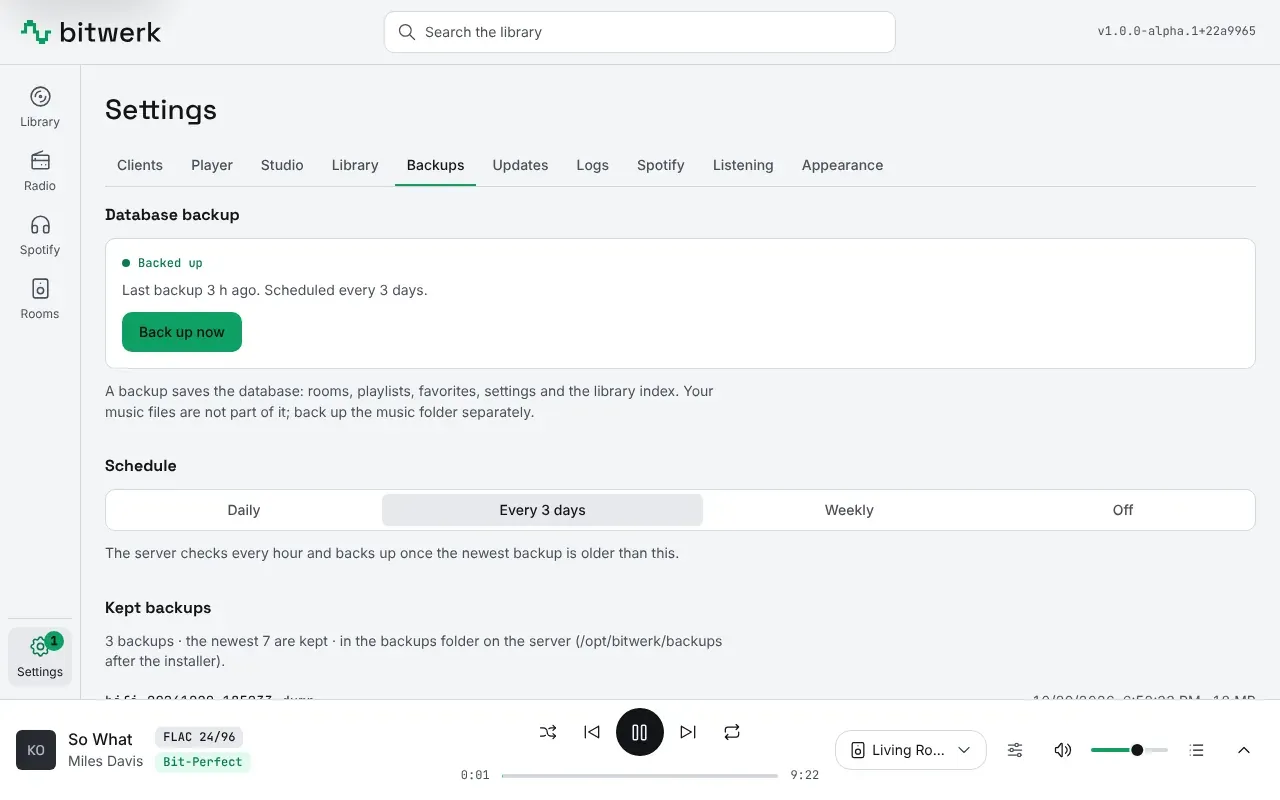
In the web UI (Settings → Backups, admins only) you see the last backup, its status
and the kept backups, choose the interval (every 24 hours, 72 hours, weekly or off) and start a backup at once with
Back up now. The web UI cannot run commands on the host: it writes the interval and the request into
/opt/bitwerk/data/backup/, where a systemd path unit starts the backup and backup.sh writes its status back.
Check the timer and the last runs:
systemctl list-timers bitwerk-backup.timerjournalctl -u bitwerk-backup -u bitwerk-backup-nowBack up by hand at any time:
sudo deploy/backup.shA different target folder can be passed as an argument, for example a mounted NAS:
sudo deploy/backup.sh /mnt/nas/hifi-backupsBACKUP_KEEP=10 in the .env keeps more backups (applied on the next install.sh or update).
sudo deploy/install.sh --no-backup-timer removes the timer and the path unit (the choice stays for updates),
--backup-timer sets them up again. Without systemd the installer prints a line for sudo crontab -e instead:
0 * * * * cd /opt/bitwerk && BACKUP_KEEP=5 deploy/backup.sh --if-due >> backups/backup.log 2>&1For a checkout, the backups go to backups/ in the repository folder (Git ignores it); the web UI page works once
data/backup/ exists, belongs to UID 10001 and something runs deploy/backup.sh --if-due regularly and on
requests, as the installer’s units do. Running sudo deploy/install.sh from the checkout sets all of this up.
A control-server without Docker reads the folder named by BACKUP_STATE_DIR (unset: the page says backups are
not set up); backup.sh takes the same folder from BACKUP_STATE_DIR and its backups folder as its first
argument.
The music folder is not part of the database backup. You back it up with your usual tool, for example rsync to a second disk:
rsync -a --delete /srv/bitwerk/music/ /mnt/backup/music/The admin password and MEDIA_URL_SECRET are in the database if you had them generated in the browser or by the
server; the database backup therefore contains them. If you wrote secrets into the .env
(ADMIN_PASSWORD_HASH, MEDIA_URL_SECRET, API_TOKENS), keep a copy separately
and protected, for example in a password manager. Put the admin password into the .env only as
ADMIN_PASSWORD_HASH, never as a plain ADMIN_PASSWORD: that one is meant for testing, sits in the
file in plain text and gets a new hash at every start, which ends its logins. For everyday use, sign
in with your own user account (Settings → Access).
Restore
Section titled “Restore”deploy/restore.sh replaces the database with a backup:
sudo deploy/restore.sh backups/hifi-20260101-033000.dumpThe script asks for confirmation, stops control-server and media-service, saves the current state to
backups/pre-restore-….dump, recreates the database, loads the backup in one transaction
and starts the services again. A backup from an older version can be loaded into a newer one:
missing migrations run automatically on start. The reverse (new backup, old version) does
not work.
Moving to a new server: copy the music folder back and set up bitwerk with the installer
(--music-dir pointing to the folder). You skip the initial setup in the browser; instead
load the backup:
sudo /opt/bitwerk/deploy/restore.sh --yes /path/to/hifi-20260101-033000.dumpAfter that the old admin password applies again. Copy your own .env back to /opt/bitwerk
beforehand.
Paired players keep their token because it is stored in the database. If the server’s IP address
changes, the players find it again by discovery, unless HIFI_SERVER is set explicitly on the Pi.
Updates
Section titled “Updates”Before you update
Section titled “Before you update”-
The server checks once a day whether a new release exists and tells admins in the web UI, with the patch notes of every newer release and a note when one of them is a breaking change or migrates the database. Only the public release feed is read, nothing about your installation is sent; switch the check off in the settings, or for good with
UPDATE_FEED_URL=offin the.env. -
Read what changed: the CHANGELOG and the release notes. Notes under Changed or Removed can need a step from you.
-
See which version runs now:
cat /opt/bitwerk/VERSIONshows the installed bundle, and the server reports its own version (theversionfield):Terminal window curl -s http://localhost:8080/api/health -
The update backs up the database first; for a bigger jump, also copy the newest backup off the machine.
-
Every release is signed: the installer checks the downloaded bundle against the release’s signed
SHA256SUMS(withgpgv, part of every Debian and Ubuntu) and installs nothing if it does not match. To check a download by hand:gpgv --keyring ./bitwerk.gpg SHA256SUMS.sig SHA256SUMS && sha256sum -c --ignore-missing SHA256SUMSwith the key from the APT repository (<site>/apt/bitwerk.gpg).
Running the update
Section titled “Running the update”From the web UI: an admin’s Update installs the chosen release: the installer’s update agent backs up the
database, installs the version, checks that everything starts healthy and, if not, goes back to the previous
version and its database by itself. While rooms play it asks first. Log on the host:
journalctl -u bitwerk-update. Installations from before the agent get it by running the installer once more
(sudo /opt/bitwerk/deploy/install.sh).
On the command line, one command updates the server:
sudo /opt/bitwerk/deploy/update.shThe script (equivalent to install.sh --update)
- downloads the new version of the Compose bundle from the latest release,
- backs up the database to
/opt/bitwerk/backups/(the newest five are kept,BACKUP_KEEPin the.envchanges that), - replaces
docker-compose.ymland the scripts; the.envstays, a modifieddocker-compose.ymlis saved asdocker-compose.yml.bak, - pulls the new images, restarts and waits until all services are healthy.
Database migrations run automatically when control-server and media-service start. You install a
specific version with --version 1.2.0; it stays pinned in the .env
(BITWERK_VERSION) until you specify a different one. A pinned update says so and names the latest release
(“pinned to 1.2.0; the latest release is 1.3.0”), or that it could not check; --version latest removes the
pin. Clean up old images occasionally:
sudo docker image pruneFrom a checkout: take a backup, then fetch the new state and rebuild the images:
git pulldocker compose up -d --buildNew optional variables show up in .env.example.
Players: with the bitwerk APT repository, update the player package alone with
sudo apt update && sudo apt install --only-upgrade hifi-client (it leaves kernel and firmware alone, so a power
cut cannot break booting), otherwise with sudo hifi-setup --update. The running services restart with the new version.
Or let each player do it by itself: sudo hifi-setup --upgrades auto (or UPGRADES=auto in the image’s
bitwerk.txt) checks daily and installs only the player package, never while it plays: it waits until the DAC is
idle before it installs and restarts (log: journalctl -u hifi-update; off: --upgrades manual). The setup and
every update say which way a Pi gets its updates, and warn when the APT repository is not reachable.
Operating system updates (sudo apt full-upgrade) rewrite the kernel on the boot partition: run them when the
player is not needed and do not unplug the Pi until they are done. Details:
Set up a Raspberry Pi.
Uninstall
Section titled “Uninstall”sudo /opt/bitwerk/deploy/install.sh --uninstallremoves the containers and the backup timer. Database, .env and music stay; running install.sh again
starts bitwerk with all data and sets up the timer again. This deletes everything except music and backups:
sudo /opt/bitwerk/deploy/install.sh --uninstall --purgeThe installer asks for confirmation. The music folder and /opt/bitwerk/backups are kept
in every case.
Logs and health checks
Section titled “Logs and health checks”All containers write to stdout; Docker rotates the logs at 10 MB and keeps three files per service. View the logs:
sudo docker compose logs -f --tail 100 control-server media-serviceRUST_LOG=debug (or specifically RUST_LOG=info,control_server=debug) in the
.env gives more detail, then sudo docker compose up -d.
control-server, media-service and ai-service have a built-in health check: every 30 seconds Docker calls
<service> --healthcheck in the container. The probe mode
queries GET /api/health of the running service; for the control-server the database must additionally
be reachable. Three failures in a row make the container unhealthy. The slim image
contains no curl, so the binary does the check itself.
The services start as soon as Postgres is ready. The ai-service sends nothing anywhere until an admin switches AI
on in the web UI and enters a provider. Without MEDIA_URL_SECRET in the .env, the media-service and the
ai-service wait a few seconds on the very first start until the control-server has created the stream secret in
the database (in the log: waiting for the control-server to create the shared secret).
If it hangs there permanently, the control-server is not running: sudo docker compose logs control-server.
sudo docker compose psThe web UI and the classic UI
Section titled “The web UI and the classic UI”The web UI opens at /, for example http://<server>:8080/, or http://<server>/ when port 80 is free (with HTTPS:
https://hifi.home.arpa/). The classic web UI it replaced stays at /classic/ until it is removed with v1.1
(#256). Links to the new UI’s old address /next/ redirect to
the same page at /. Nothing needs to be set up: both web UIs are built into the control-server binary. A build
from a checkout (docker compose up -d --build) builds the UI inside Docker, so the host needs no Node.js.
The web UI can be installed as an app (PWA): it then starts full screen with the bitwerk icon. On Android and in
desktop Chrome or Edge, open / and choose Install app; this needs HTTPS (see below), because browsers offer
the install only on secure pages. An app installed from /next/ before the switch opens in the browser after the
redirect; remove it and install it again from /. On iPhone and iPad, open it in Safari and choose Share → Add to Home Screen; that
also works over plain HTTP. The app always needs the server: without it, it shows the connection state.
Built-in HTTPS and its certificate
Section titled “Built-in HTTPS and its certificate”The server answers over HTTPS without any setup: on port 443 (https://bitwerk.local, or whatever name
your router gives it, such as https://bitwerk.fritz.box) and on 8443. Browsers need it for passkeys,
for installing the web UI as an app and for the Spotify login from another device.
The certificates come from the server’s own certificate authority, made on the first start and kept in
the volume control-data. Until a device trusts that authority, its browser shows Not secure and asks
once to continue. Trust it once per device and every name and address of the server opens without a
warning: the server makes a certificate for each name a browser asks for (bitwerk.fritz.box,
bitwerk.local, 192.168.178.20, …) and renews it on its own, 30 days before it expires.
Settings → Access → HTTPS certificate has the download, the authority’s fingerprint to compare and
the steps for the device you are on. The file is also at http://<server>/bitwerk-ca.crt, without
signing in, so a phone can fetch it before it trusts anything:
- Windows: open the file → Install Certificate → Current User → Place all certificates in the following store → Trusted Root Certification Authorities → Finish, confirm with Yes, restart the browser.
- macOS: open the file (Keychain Access adds it), double-click bitwerk local CA … → Trust → When using this certificate: Always Trust.
- iPhone, iPad: open the address in Safari and allow the download, then Settings → General → VPN & Device Management → install the profile, and Settings → General → About → Certificate Trust Settings → switch on full trust for it.
- Android: Settings → Security & privacy → More security settings → Encryption & credentials → Install a certificate → CA certificate (the menu names vary by manufacturer). Chrome trusts it at once; Firefox for Android only uses its own certificates.
- Linux:
sudo cp bitwerk-ca.crt /usr/local/share/ca-certificates/ && sudo update-ca-certificates(Debian, Ubuntu, Raspberry Pi OS); Chrome and Chromium import it under Settings → Privacy and security → Security → Manage certificates. - Firefox on a computer: if it still warns, Settings → Privacy & Security → Certificates → View Certificates → Authorities → Import, tick Trust this CA to identify websites.
Why this is safe to trust. The authority may only sign for home networks: its name constraints allow
the usual home names (.local, .lan, .home, .home.arpa, .internal, .localdomain, .fritz.box,
localhost), the server’s own host name and the private address ranges (10/8, 172.16/12,
192.168/16, 100.64/10, loopback, link-local, IPv6 ULA). Devices refuse anything it signs for another
name, so even its key could not be used to impersonate your bank. The key never leaves the server; only
the public certificate is served.
Your own domain instead. A certificate from Let’s Encrypt needs no step on the devices, but it needs a
public domain you own, and for a server that is not reachable from the internet the DNS challenge with
an API token of your DNS provider. Many home routers (a FRITZ!Box among them) also block public names
that point to a home address (DNS rebind protection) until the name is added as an exception. bitwerk
does not do this by itself yet; with a publicly reachable name the https profile below gets a Let’s
Encrypt certificate today.
HTTPS (optional)
Section titled “HTTPS (optional)”Without TLS, the login cookie and tokens travel in plain text across the network. The built-in HTTPS
above covers most homes. If you want a reverse proxy in front instead (all of port 80 redirected to
HTTPS, HSTS, or Let’s Encrypt for a publicly reachable name), enable the Compose profile https. It starts Caddy
as a reverse proxy on port 443 (and 80 for the redirect); the configuration is in
deploy/Caddyfile. Players and touch displays continue to speak plain HTTP directly to port 8080 or 8082.
With the installer this is enough:
sudo /opt/bitwerk/deploy/install.sh --https --hostname "hifi.home.arpa, 192.168.1.10"It sets HIFI_HOSTNAME, SESSION_COOKIE_SECURE=true and COMPOSE_PROFILES=https in the .env,
so that updates and sudo docker compose up -d also start Caddy. Without --hostname it uses
<hostname>.local and the LAN IP. Continue with step 3. By hand:
-
In the
.env, enter the name under which the web UI should be reachable. It must point to the server in the LAN (router DNS, Pi-hole or/etc/hosts); several names or the IP address comma-separated:Terminal window HIFI_HOSTNAME=hifi.home.arpa, 192.168.1.10HIFI_TLS=internalSESSION_COOKIE_SECURE=true -
Turn the profile on in the
.env(then the control-server leaves ports 80 and 443 to Caddy) and start the stack:Terminal window echo COMPOSE_PROFILES=https | sudo tee -a .envsudo docker compose up -d -
With
HIFI_TLS=internalCaddy issues the certificate from its own local CA. So that the browser trusts it, import its root certificate once on every device as a trusted certificate authority. Caddy serves it over plain HTTP athttp://<server>/bitwerk-ca.crt(only that file; everything else on port 80 redirects to HTTPS), or export it on the server:Terminal window sudo docker compose cp caddy:/data/caddy/pki/authorities/local/root.crt ./hifi-root-ca.crt- iPhone, iPad: open
http://<server>/bitwerk-ca.crtin Safari and allow the download, then Settings → General → VPN & Device Management → install the profile, and Settings → General → About → Certificate Trust Settings → switch on full trust for it. - Android: download the file, then Settings → Security → More security settings → Encryption & credentials → Install a certificate → CA certificate (the menu names vary by manufacturer).
- Windows, macOS, Linux: import it into the system’s trusted root authorities (Keychain
Access on macOS: “Always Trust”); Firefox uses its own store unless
security.enterprise_roots.enabledis on.
If you have a publicly reachable name, set
HIFI_TLSto your email address instead; Caddy then gets a certificate from Let’s Encrypt. - iPhone, iPad: open
After that the web UI is reachable at https://hifi.home.arpa. With SESSION_COOKIE_SECURE=true
the browser sends the login cookie only over HTTPS; a login via http://<server>:8080
then no longer works. The CSRF check compares Origin with Host; Caddy passes the
Host header through unchanged, no further settings are needed. The login rate limit still
counts each browser on its own: bitwerk believes Caddy’s X-Forwarded-For because Caddy reaches
it over loopback. A proxy on another machine is named in TRUSTED_PROXIES.
Installing the web UI as an app
Section titled “Installing the web UI as an app”The web UI can be installed as an app (home screen icon, its own window, no browser bar). Chrome,
Edge and Android offer that only over HTTPS, so on those devices open it through the proxy
(https://<server>/) after trusting the certificate;
the browser then offers Install app, and the theme menu in the top bar has an Install app button.
iPhone and iPad install from Safari over HTTP as well: Share → Add to Home Screen. Over plain HTTP
the theme menu says what is missing and links the certificate and the HTTPS address.
The volume caddy_data contains the key of the local CA. If it is lost, Caddy generates a
new CA and all devices have to trust it again. Back it up as well.
Passkeys over HTTPS
Section titled “Passkeys over HTTPS”User accounts can sign in with a passkey (fingerprint, face, device PIN or a security key) instead
of typing their password. Browsers allow passkeys only over HTTPS and only for a host name, never
for an IP address. Enter the address you open the web UI at in the .env, scheme and host
(and port, if not 443) only:
PASSKEY_ORIGIN=https://hifi.home.arpaThen docker compose up -d, sign in with your account at exactly that address and add a passkey
under Settings → Access → Passkeys. At any other address (the IP, port 8080) the sign-in
card shows where passkeys work, and the password keeps working everywhere. With
HIFI_TLS=internal the devices must trust Caddy’s root certificate (step 3), otherwise the
browser refuses passkeys. Changing the host name later makes the existing passkeys unusable;
add them again at the new address.
Spotify over HTTPS
Section titled “Spotify over HTTPS”Spotify accepts http as a redirect URI only for loopback addresses. Without any setup the server
also answers over HTTPS on ports 443 and 8443 (Built-in HTTPS), and Settings → Spotify
offers https://<server>/api/auth/spotify/callback as the redirect URI (:8443 when port 443 is taken); a
device that does not trust the server’s certificate yet warns once after the Spotify login. With the https profile below,
you enter the HTTPS address as the redirect URI in the
Spotify dashboard for your app and
set it identically under Settings → Spotify in the web UI or in the .env:
SPOTIFY_REDIRECT_URI=https://hifi.home.arpa/api/auth/spotify/callbackThen sudo docker compose up -d, sign in to the web UI via https://hifi.home.arpa and choose Link
Spotify. The browser must trust the certificate, otherwise the redirect back from
Spotify fails.