

Control & integrations
Web UI
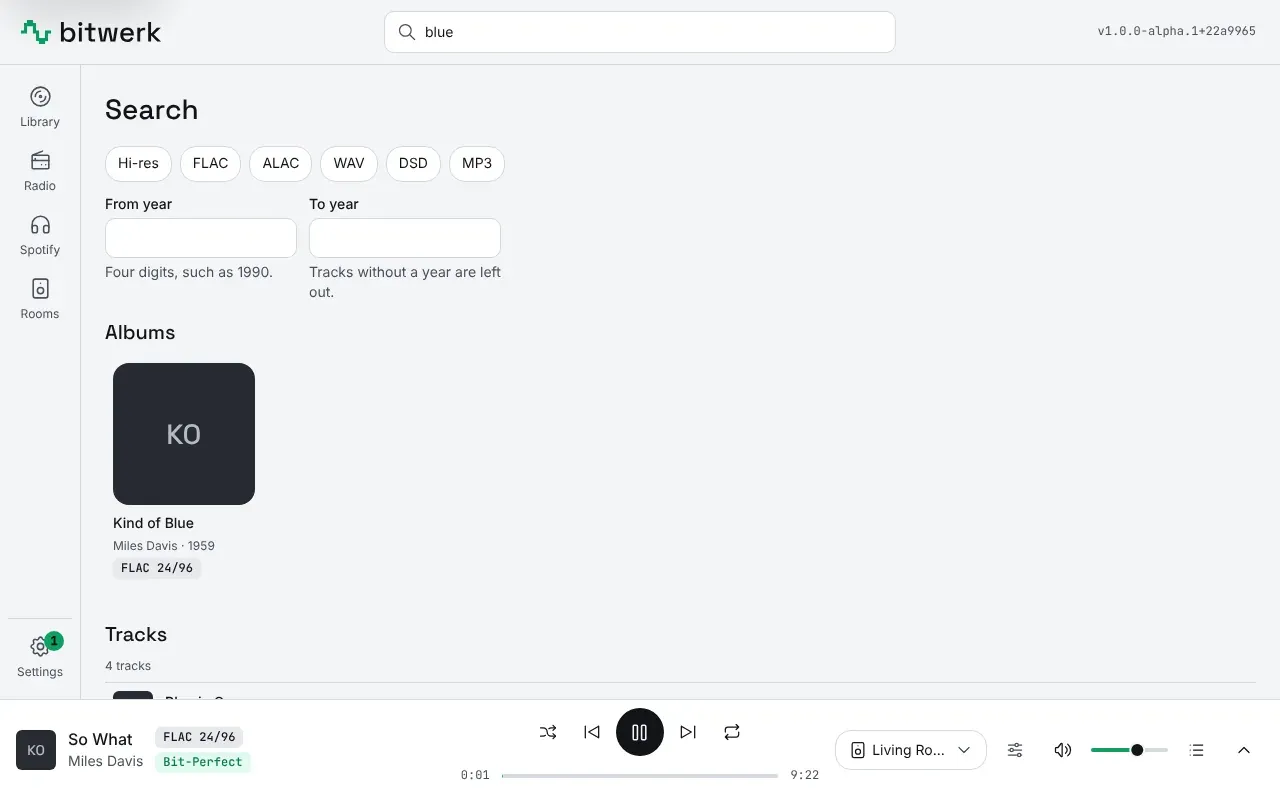
Section titled “Web UI”The web UI runs at http://<server>:8080 in any browser, including on a phone.
-
Player selection at the top: all commands go to the selected room. The browser remembers the selection.
-
Navigation: the tabs Search | Albums | Artists | Playlists switch the view; the browser’s back button works, and albums and playlists can be bookmarked.
-
Search: the
/key jumps to the search field. A click on a hit plays it immediately, ”+” queues it, “AB” starts an A/B comparison with the current track. -
Albums: grid with cover, year and quality, sortable by artist, album or “recently added”. The play button on the cover plays the album immediately. In the album detail view, “Play” plays everything, “Enqueue” appends the album to Up next, and a click on a track plays from that track. Artists leads to the filtered albums.
-
Playlists: enter a name at the top and click “Create”. Tracks get in via the list icon next to each track (or “Add to playlist” for a whole album). In the playlist you sort by drag & drop or with the arrows, ”×” removes an entry; rename and delete are at the top.
-
Favorites: the heart on each track marks it; all favorites are at the very top under Playlists and can be played like a playlist.
-
Playback: play/pause (space bar), seeking on the progress bar, volume and mute.
-
Shuffle and repeat: the buttons left and right of the transport. Shuffle plays Up next in a random order and restores the original order when you turn it off; the current track keeps playing. Repeat cycles through off, all (the queue starts again after its last track) and one (the current track plays again; Next still skips). Both are saved per room and are disabled while Spotify plays in the room.
-
Up next and History of the selected room; entries in Up next can be removed.
-
Studio bar: mono, L−R, dim, sub and the A/B switch with level display. An A/B comparison ends as soon as another track plays (next, end of track, a new track).
-
Settings:
Tab Contents Clients Approve & pair, block, remove players Player DAC capabilities, ReplayGain mode and preamp, volume mode Studio Import PEQ profiles, create and test triggers (webhook/MQTT) Uploads Result of the latest uploads, including unsorted files with the reason Spotify Link and unlink an account Access Create and revoke API tokens for scripts and Stream Deck
Touch display
Section titled “Touch display”On a Raspberry Pi with a touchscreen, hifi-kiosk.service runs: the native touch interface, drawn directly on the
display without a browser (the Chromium kiosk, hifi-display.service and hifi-player-kiosk.service, remains as an
opt-in fallback). The display always shows the room of its Pi. It signs in with the player token, so it only sees
that room.
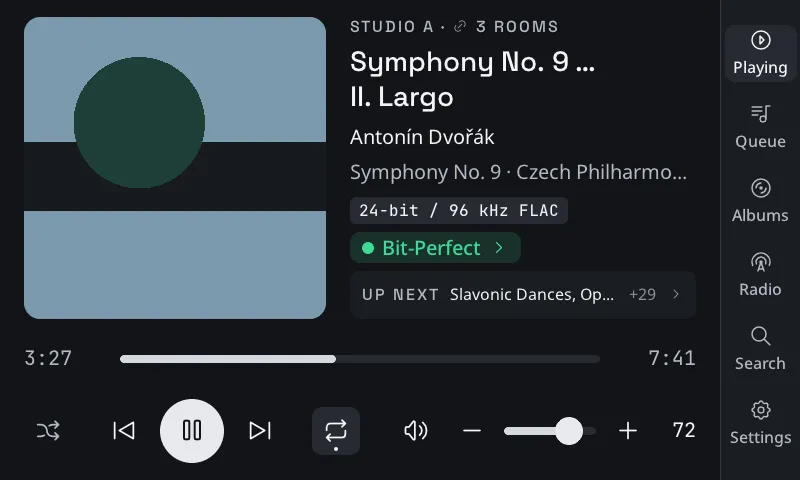
Besides Now playing, the rail of the native kiosk has Queue (play or remove an entry, clear it), Albums (a grid of the library, A–Z or newest first), Radio, Search and Settings. On Now playing, the room line opens Rooms to link this room with others, the Bit-Perfect or DSP chip opens the signal path and the output, and Lyrics opens the song’s words in full screen, following the song, with About this song at the end. Search finds the library first and offers Spotify (“On Spotify”) when the library has nothing. Tapping an album or a search hit opens a sheet with Play, Play next and Add to queue, so a single tap never replaces what is playing. After two minutes without a touch the display returns to “Now playing”; after a while longer it can show a far view with a large cover and title (Settings → Display: Balanced, Large, Huge or Off, and how DJ sets show: Mixing in or Lanes). Settings → Info shows the player’s name, version, server, IP and MAC address. Playlists and favorites remain reserved for the web UI. Setup: Raspberry Pi → Touch display.
Stream Deck (HTTP)
Section titled “Stream Deck (HTTP)”Stream Deck plugins for web requests, such as “Web Requests” or “API Ninja”, send a POST to the control-server:
POST http://<server>:8080/api/control/<action>?player_id=<id>&value=<value>Authorization: Bearer hfa_…You create the token under Settings → Access. Without player_id the command goes to the
first room that is online.
| Action | Effect |
|---|---|
play-pause, play, pause, next, previous | Transport |
volume-up, volume-down | ±3% |
volume | absolute, value 0.0–1.0 |
mute, mono, diff, dim, sub-mute | value=1 on, value=0 off, without value toggle |
output-main, output-alt, output-headphones | Select speakers |
ab-toggle | Toggle A/B |
shuffle | value=1 on, value=0 off, without value toggle |
repeat | value=0 off, value=1 one, value=2 all; without value it cycles off → all → one |
radio | Play a saved radio station: value=2 is the second station you saved under Radio (presets) |
display-only | The player’s touch display only shows, it takes no touch: value=1 on, value=0 off, without value toggle |
OSC (faders, TouchOSC)
Section titled “OSC (faders, TouchOSC)”OSC messages go via UDP to port 9000 and use the same actions:
/hifi/<action> [value] → default room/hifi/player/<player-id>/<action> [value] → specific roomExamples: /hifi/shuffle 1 turns shuffle on, /hifi/shuffle without a value toggles it; /hifi/repeat 2 sets
repeat all, /hifi/repeat without a value cycles off → all → one. A button that sends 1 on press and 0 on release
sets the value of the press and then 0 (off), as for mute, so map it to send no value or only the press.
For security reasons the server only accepts OSC from addresses in OSC_ALLOWED_IPS
(default: only the server itself). Enter, for example, 192.168.1.0/24 or the IP of your tablet.
Motor faders and LEDs follow the rooms: the server sends each value back on the address of its action
(/hifi/volume 0.6, /hifi/dim 1, /hifi/output-alt 1, plus /hifi/title, /hifi/artist and
/hifi/online). To get it, a controller sends /hifi/feedback once (or /hifi/feedback 9001 to receive
on port 9001), or you list it in OSC_FEEDBACK as IP:port. /hifi/feedback 0 stops it. For the full
list of addresses, ask us.
Triggers: webhooks and MQTT
Section titled “Triggers: webhooks and MQTT”Under Settings → Studio a trigger fires on one of these events:
playback_startedplayback_pausedplayback_stoppedtrack_changedplayer_pending: a new player asks for pairing and waits for you (with Extended security on)underrun: a player’s output ran out of audio (at most once a minute)player_offlineandplayer_online: a player went away or came back
The server sends the event as JSON:
- Webhook:
POSTto your URL. The headerX-Hifi-Eventnames the event. If a secret is set,X-Hifi-Signature: sha256=<HMAC of the body>is added so that the receiver can verify the origin. - MQTT: to a topic on your broker (QoS 1; the broker is set in the web UI’s server settings). While the broker is unreachable, the server keeps up to 64 messages and sends them once it is back; further messages are dropped and logged.
The placeholders {player_id} and {event} are available in the URL and topic, for example
studio/{player_id}/{event}.
The events of a room reach each receiver in the order they happened. A receiver is a webhook host (all URLs
with the same scheme, host and port) or the MQTT broker. So a light switched on at playback_started and off
at playback_paused is off after a quick play and pause, as long as both triggers go to the same host or both
over MQTT. A slow or unreachable webhook host (up to 5 seconds per delivery) only delays the later events of
that room to the same host; an unreachable MQTT broker delays nothing.
Example recording light with Home Assistant: create an MQTT trigger on playback_started with the topic
hifi/{player_id}/{event}. In Home Assistant, an automation listens to this topic and switches
the light.
Home Assistant
Section titled “Home Assistant”With an MQTT broker that Home Assistant also uses (set in the web UI’s server settings), every room appears in
Home Assistant on its own (MQTT discovery, on by default): one device per room with its state, title, artist and album,
a volume slider, mute and shuffle switches and Play/Pause, Next and Previous buttons. Home Assistant’s MQTT
integration has no media player type, so the room is a device of these entities; dashboards and automations use
them like any other. Commands from Home Assistant show up as mqtt:homeassistant in the room’s last actor.
Topics, for your own automations: bitwerk/<room id>/state (JSON, retained), bitwerk/<room id>/control/<action>
(the actions of the HTTP and OSC control, payload the value, e.g. 0.4 for volume) and bitwerk/status
(online/offline). Two bitwerk servers on one broker need different HA_BASE_TOPICs.
Spotify
Section titled “Spotify”Under Settings → Spotify in the new web UI you set up the Spotify app and link a Spotify account (OAuth with PKCE, no secret). The tab walks you through it:
- Create an app in the Spotify Developer Dashboard (Web API).
- Add the redirect URI the tab shows (with a copy button) to the app, exactly like this.
- Copy the app’s client ID into the tab and save, then choose Link Spotify.
Spotify allows plain http only on 127.0.0.1 (not localhost); the tab warns about an address Spotify refuses
and offers an HTTPS address that works: behind a reverse proxy the page’s own address, otherwise the server’s
built-in HTTPS port, for example https://bitwerk.local/api/auth/spotify/callback. Choose Use this
address, save, and add the same address in the Spotify dashboard. The server makes its own certificate for that
port, so after the Spotify login the browser warns once that it does not know it; continue to the page. With the default http://127.0.0.1:8080/... and
the web UI opened from another device, the browser shows an error page after the Spotify login: copy that page’s
whole address, go back to the tab and paste it under Address after the login. SPOTIFY_CLIENT_ID and
SPOTIFY_REDIRECT_URI still work as a fallback; values saved in the tab take precedence. A new client ID
unlinks the account.